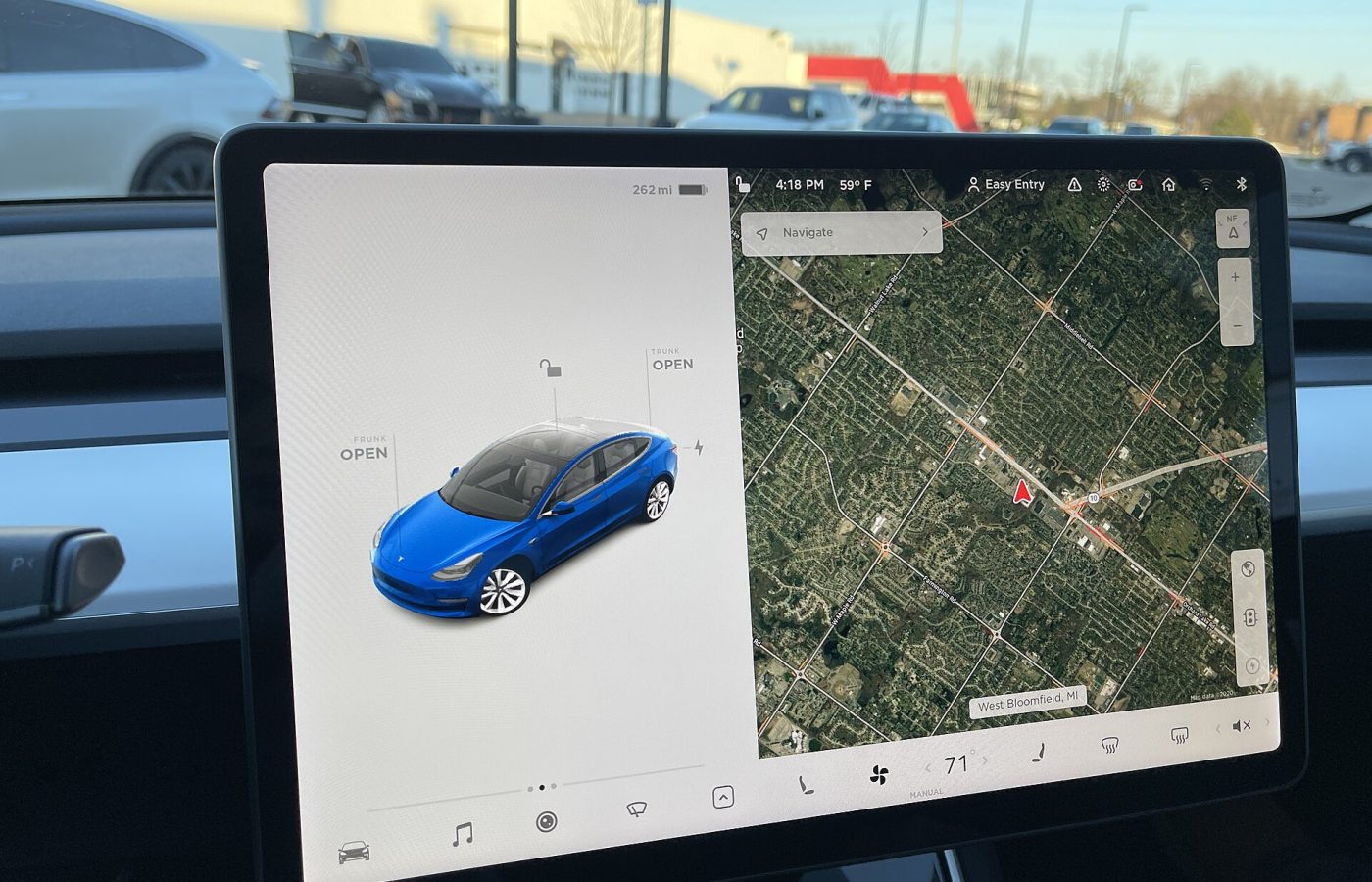
It happens all the time. Someone posts a screenshot of a shiny new Tesla update, and half the comments say “Why don’t I have it yet?” The car isn’t broken and Tesla hasn’t forgotten you. Here’s how software rollouts actually work.
Tesla releases updates in waves
Tesla doesn’t send a new update to every car at once. It goes out in staged rollouts: first to a small group of cars, then to more as Tesla checks for problems. Tesla’s owner’s manual says Tesla “determines how, when, and where to send updates to vehicles based on various factors unique to each release.”
That means two cars in the same driveway can be on different versions for days or even weeks. It’s normal.
Factors that affect when you get an update
1. Your vehicle configuration
Model, year, hardware (computer and cameras), motor setup and features you’ve bought, like FSD, all play a role. Some updates are only for certain hardware, and some are rolled out to one configuration before another.
2. Your region
Updates are released by region. Features sometimes reach the U.S. before Canada because of regulatory approval, language support or map data. Canadian owners comparing themselves to American YouTubers will often be a step behind.
3. The version you’re on now
If your car is several versions behind, it may need to catch up, or it may skip straight to a different branch than someone who updated last week. Version numbers like 2026.32.x versus 2026.32.y can be parallel builds for different groups of cars.
4. Your Software Update Preference
Go to Controls > Software > Software Update Preference and you’ll see two choices (per Tesla Support):
- Advanced: get updates as soon as they’re available for your vehicle configuration and region. You’ll get more releases.
- Standard: wait until others have installed an update. You’ll get fewer, more proven releases.
Tesla notes that Advanced doesn’t guarantee you’ll be first, and it doesn’t enroll you in Tesla’s Early Access program.
5. Wi-Fi
This one is often overlooked. Tesla says that in most cases your car must be connected to Wi-Fi to download an update, and that leaving Wi-Fi on and connected is the fastest, most reliable way to receive them. If your car is parked outside out of Wi-Fi range, it may sit on an update without ever downloading it.
Can I force an update?
No. Tesla states that it “does not update your software upon request.” There’s no secret button, and the Service Centre won’t push one for you just because you want the latest features. According to Tesla, the best you can do is:
- Set your preference to Advanced.
- Keep the car connected to Wi-Fi where it parks overnight. A mesh node or extender near the garage helps a lot.
- Turn on Automatically Install Updates (Controls > Software) if your car offers it, so updates install as soon as they download.
- Install any pending update promptly. Being on an old version can delay the next one.
How to check for an update
Tap Controls > Software on the touchscreen, or look for a Software Update section in the Tesla app. A yellow clock icon at the top of the screen means an update is ready to install. You can install now or schedule it. The car can’t be driven while installing, and it pauses charging until the install is done, so schedule it for overnight.
Should I choose Advanced or Standard?
If you love new features and don’t mind the occasional minor bug, choose Advanced. If you depend on your car every day and want the most stable software, Standard is perfectly reasonable. Updates that fix serious issues still reach everyone.
Bottom line
Different versions are normal and come from Tesla’s staged rollouts. Your region, hardware, settings and Wi-Fi all play a part. Keep the car on Wi-Fi, choose Advanced if you want to be early, and be patient. Your update is coming.
Have a question this guide didn’t answer? Ask over 17,000 Ontario Tesla owners in our Tesla Model Y & 3 [Ontario, Canada] Facebook group.
Photo: SirAsdof via Wikimedia Commons, CC BY-SA 4.0.