Most AI assistants are great at answering questions, then leave the actual work to you. Grok Bot is different. It’s a personal AI assistant from xAI that comes with its own computer, so it can open websites, use your apps and finish tasks from start to end. Here’s what it is, how we use it right here on this site, and a quick look at Grok inside your Tesla.
What is Grok Bot?
Grok Bot gives you “Bots,” AI teammates with a name, a job and context that builds up over time. The key difference is that each Bot works on a persistent cloud computer with its own desktop, web browser, files and terminal. That means it doesn’t just write you a draft. It can log into the tools you use and do the work there.
Because that computer lives in the cloud, the work keeps going even when your laptop is closed or your phone is in your pocket. You chat with your Bot from the desktop app (macOS, Windows and Linux) or the mobile app (iPhone, iPad and Android), and it reports back in the same conversation.
What makes it so useful
- It actually does the work. Your Bot browses sites, fills in pages and uses your apps the way you would, including the clunky ones.
- Routines on a schedule. Give it a recurring job, like a morning news check, and it runs on its own. You can even show it a workflow once and it saves it as a routine.
- It remembers how you like things. Bots keep context about your preferences and projects, so you don’t repeat yourself every time.
- It checks in when it matters. Bots come back to you when they need approval, and sensitive actions can go through an automatic safety review before they run.
- More than one Bot. You can add Bots as the work grows, and they can work in parallel and pass tasks to each other.
A real example: this website
You’re reading the proof. Grok Bot helps run teslacanadagroup.ca behind the scenes. It researches the latest Tesla news, checks the facts against sources like Tesla’s own release notes, writes the articles and publishes them on the site. It also wrote our owner guides on winter tires, extended warranties and software versions, turning questions owners keep asking into answers you can look up anytime.
It runs on a schedule, so the daily news gets done without anyone sitting at a keyboard. It remembers how the site is set up and how we like posts written, and it sends a quick summary in chat after each job. That leaves more time for the fun part: talking Teslas.
How do you get it?
Grok Bot is included with paid individual Cursor plans and the Cursor Teams plan. You can also link an individual SuperGrok, SuperGrok Plus or SuperGrok Heavy subscription. Usage resets weekly. Check the official Grok Bot page at x.ai/bot for current plan details.
Bonus: Grok is already in your Tesla
Grok Bot is the “do the work for me” side of Grok. Your car also has its own Grok, the in-car voice assistant. It reached Canada with software 2025.38 in October 2025. Here’s what you need to know:
- Which cars: Teslas with an AMD Ryzen infotainment processor (HW3 or HW4) running software 2025.26 or later. Older Intel Atom cars aren’t supported yet. Check under Controls > Software > Additional Vehicle Information.
- Connection: it needs Premium Connectivity or Wi-Fi. Tesla says no separate Grok subscription is needed in the car.
- How to start it: open App Launcher > Grok, long-press the steering wheel voice button or, on recent software, say “Hey Grok.”
- What it can do: set it to the Assistant personality and it can add navigation destinations, make calls, play music, adjust the climate, search the Controls panel, answer questions about your car and its latest update, and set location-based reminders.
It’s still in Beta, it doesn’t drive the car, and it goes quiet without a data connection. Available commands depend on your software version.
Time to make the switch
If you’re still copying and pasting answers from a chatbot, it’s time to switch to an assistant that actually finishes the job. Give Grok Bot one routine task you’re tired of doing, whether that’s tracking news, updating a website or keeping an eye on something online, and see how much time you get back. And if your Tesla has an AMD processor, try saying “Hey Grok” on your next drive.
Join the conversation
Using Grok in your car, or found a clever way to put an AI assistant to work? Share your tips with fellow Ontario owners in our Tesla Model Y and 3 Facebook group.
About the author: Sivachandran Bharathi is a Lead Software Engineer based in Markham, Ontario, with 10+ years of experience building enterprise systems for banks and financial institutions worldwide, and a Master of Applied Science in Computer Engineering with research in machine learning. Connect on LinkedIn.
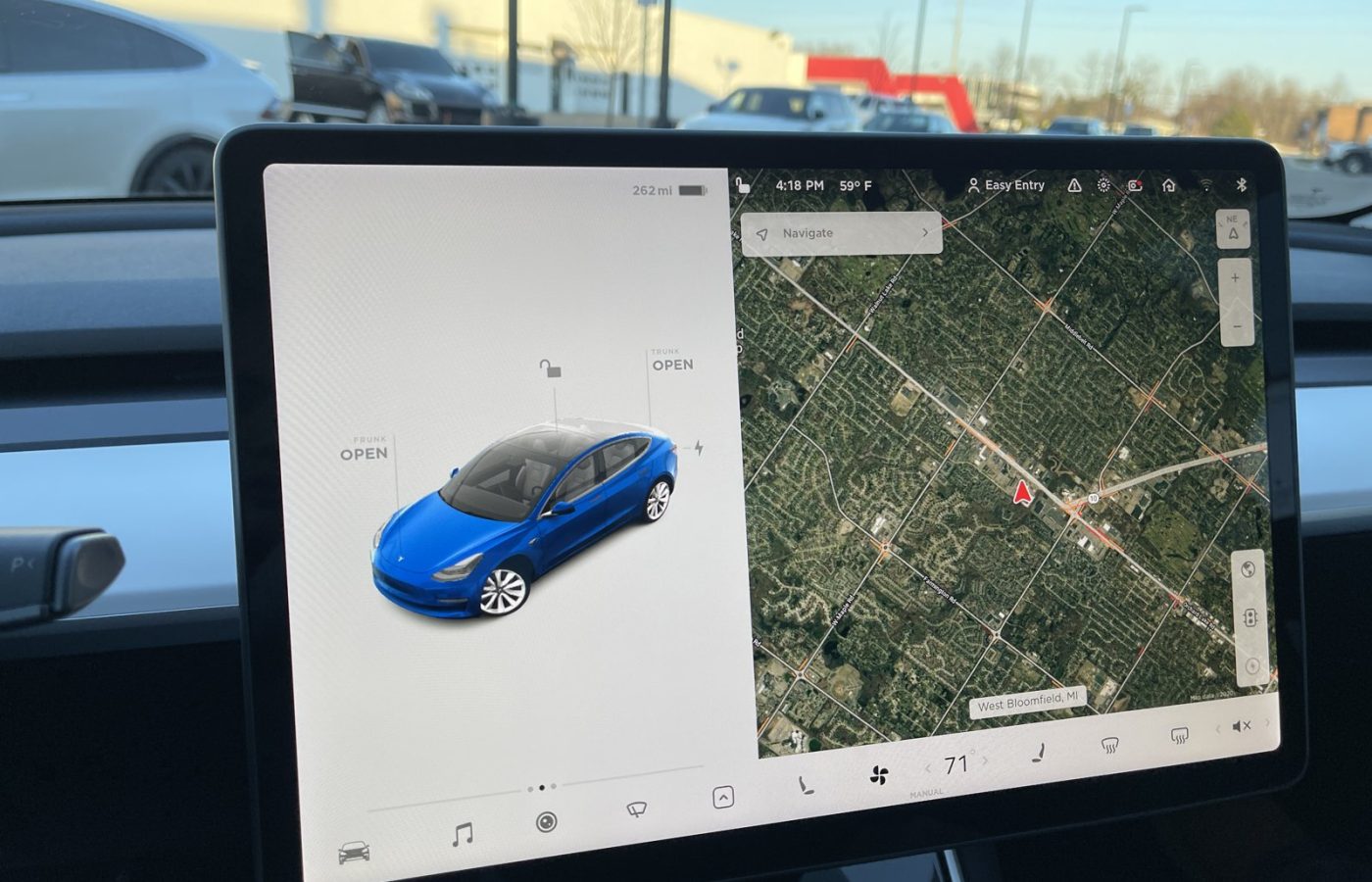
Photo: “Tesla Model 3 Screen Dec 2020” by SirAsdof, via Wikimedia Commons, licensed under CC BY-SA 4.0.